
Discover our new Kick-Ass Systems
Workstation Buying Guide: Which Workstation fits your software?

Workstation Buying Guide
Find Your Next Workstation!

Workstation Buying Guide
A workstation is an investment in your productivity, but that’s only true if the configuration is right for your software. Too little RAM slows down video editing, the wrong GPU wastes time and performance in CAD applications, and a processor with 96 cores is simply overkill for some workflows. This workstation buying guide shows you which software requires which hardware, where a workstation has the edge over a regular PC, and which system from our lineup of workstations is best suited for your specific needs.
Finding the Right Workstation in Three Questions: Software, Workload, and Configuration Level
What software do you use most often?
Adobe, CAD, 3D, rendering, game development, or video post-production all place different demands on a workstation. Therefore, your primary application determines the initial direction for the requirements of your new workstation. |
What is the bottleneck in your application?
Single-core clock speed (Adobe, CAD viewport), multi-core performance (rendering, simulation), or graphics memory (large scenes, large models) each impose different limitations—often it’s a combination of two. |
Which platform do you really need?
Entry-level, mid-range, and high-end workstations differ in the number of cores, PCIe lanes, and RAM channels. The longer your calculations take and the more graphics cards you install, the more worthwhile a professional workstation platform becomes. |
The following sections go through each of these three questions in detail.
Workstation or PC: When Is Upgrading Really Worth It?
At first glance, the difference between a high-performance PC and a workstation may not be immediately obvious, but they differ significantly in the hardware they use. Workstations are built for continuous workloads and stability: they can handle renderings or simulations for hours or even days without throttling or crashing.
Four key features make the difference clear: ECC memory is available and automatically corrects bit errors, which can be crucial for the success and stability of calculations that run for days. Professional GPUs such as the NVIDIA RTX Professional series are certified for applications like SolidWorks or CATIA and run on Studio drivers rather than gaming drivers. The platform itself, such as Threadripper or Xeon-W, offers more PCIe lanes for GPUs and storage. In addition, workstation platforms support significantly larger amounts of RAM than consumer motherboards.
Not everyone needs that. Users who occasionally edit photos or work on Full HD video projects can often get by with much more modest hardware. However, once your income depends on the machine, whether because of project deadlines or data integrity requirements, a workstation quickly becomes a worthwhile investment.
A workstation is an investment in your productivity, but that’s only true if the configuration is right for your software. Too little RAM slows down video editing, the wrong GPU costs you time and performance in CAD applications, and a processor with 96 cores is simply overkill for some workflows. This workstation buying guide shows you which software requires which hardware, where a workstation has the edge over a regular PC, and which system from our lineup of workstations is best suited for your specific needs.
Finding the Right Workstation in Three Questions: Software, Workload, and Configuration Level
What software do you use most often?
Adobe, CAD, 3D, rendering, game development, or video post-production all place different demands on a workstation. Therefore, your primary application determines the initial direction for the requirements of your new workstation. |
What is the bottleneck in your application?
Single-core clock speed (Adobe, CAD viewport), multi-core performance (rendering, simulation), or graphics memory (large scenes, large models) each impose different limitations—often it’s a combination of two. |
Which platform do you really need?
Entry-level, mid-range, and high-end workstations differ in the number of cores, PCIe lanes, and RAM channels. The longer your calculations take and the more graphics cards you install, the more worthwhile a professional workstation platform becomes. |
The following sections go through each of these three questions in detail.
Workstation or PC: When Is Upgrading Really Worth It?
At first glance, the difference between a high-performance PC and a workstation may not be immediately obvious, but they differ significantly in the hardware they use. Workstations are built for continuous workloads and stability: they can handle renderings or simulations for hours or even days without throttling or crashing.
Four key features make the difference clear: ECC memory is available and automatically corrects bit errors, which can be crucial for the success and stability of calculations that run for days. Professional GPUs such as the NVIDIA RTX Professional series are certified for applications like SolidWorks or CATIA and run on Studio drivers rather than gaming drivers. The platform itself, such as Threadripper or Xeon-W, offers more PCIe lanes for GPUs and storage. In addition, workstation platforms support significantly larger amounts of RAM than consumer motherboards.
Not everyone needs that. Users who occasionally edit photos or work on Full HD video projects can often get by with much more modest hardware. However, once your income depends on the machine, whether because of project deadlines or data integrity requirements, a workstation quickly becomes a worthwhile investment.
The Right Processor for a Workstation: Clock Speed, Cores, or Both?
When choosing a CPU, the first consideration is your workload, not the number of cores per se: Some applications require maximum single-core performance—meaning they need a single fast core—while others scale almost linearly with each additional core.
Comparison of different workstation platforms:

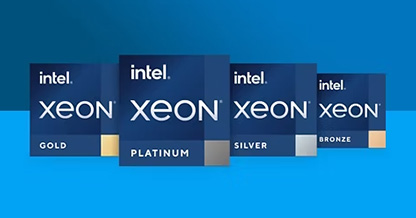
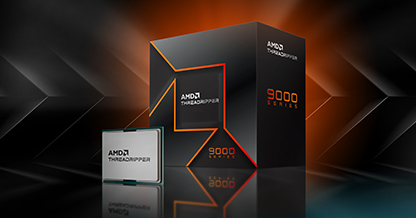
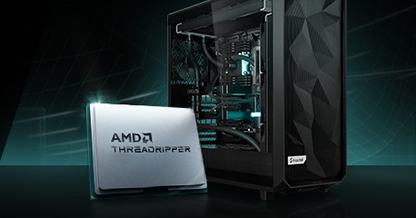
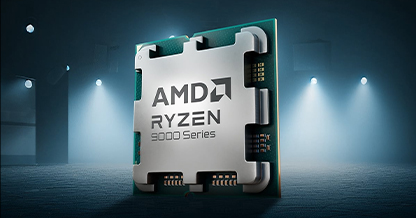
AMD Ryzen 9000 / Intel Core Ultra
AMD Ryzen 9000 and Intel Core Ultra offer up to 16 cores and 24 threads, respectively, and support ECC memory upon request. Thanks to high clock speeds and an excellent price-performance ratio, these platforms are particularly well-suited for CAD applications, graphic design, video editing, and game development.
High Clock Speeds for Workstations: Ryzen 9000, Core Ultra, and 14th Gen Core for Adobe and CAD
Photoshop, Premiere Pro, AutoCAD, and SolidWorks are largely single-threaded applications: they benefit more from a high clock speed than from additional cores. The limit on the number of cores here is beyond eight cores. An AMD Ryzen 9000, Intel Core Ultra, or 14th Gen Intel Core with 8 to 16 cores is the more cost-effective—and often even faster—choice for these workflows than a more expensive HEDT platform. You can find configurations among the AMD Ryzen 9000 workstations, the Intel Core Ultra workstations, and the 14th Gen Intel Core workstations. |
Multiple Cores for Workstations: Threadripper, Threadripper PRO, Xeon-W, and Xeon Scalable for Rendering and Simulation
As soon as your workload scales with each core—such as CPU rendering, simulation, or many parallel processes—the balance shifts in favor of more PCIe lanes and more RAM channels. If you convert computing time directly into euros, the AMD Threadripper PRO comes out on top with up to 96 cores, 8-channel RAM, and full support for ECC memory and multiple GPUs simultaneously. The right systems: AMD Threadripper workstations, AMD Threadripper PRO workstations, Intel Xeon-W workstations, and Intel Xeon Scalable workstations. |
ECC Memory in Workstations: When It Makes Sense and When It Is Essential
ECC memory automatically detects and corrects single-bit errors during operation, without you even noticing. While you can do without it on an office PC, on a workstation running a simulation for 48 hours or training a model, ECC prevents a single memory error from skewing the results. Important to know: ECC isn’t exclusive to HEDT platforms; it’s also available on current AM5 and W chipsets. Rule of thumb: As soon as calculations run longer than a workday or data integrity is contractually relevant, ECC should be included in the configuration. |
High clock speeds for workstations: Ryzen 9000, Core Ultra, and 14th Gen for Adobe and CADPhotoshop, Premiere Pro, AutoCAD, and SolidWorks are largely single-threaded: they benefit more from a high clock speed than from additional cores. The limit on the number of cores here is beyond eight cores. An AMD Ryzen 9000, Intel Core Ultra, or Intel Core 14th Gen processor with 8 to 16 cores is the more cost-effective—and often even faster—choice for these workflows than a more expensive HEDT platform. You can find configurations among the AMD Ryzen 9000 workstations, the Intel Core Ultra workstations, and the Intel Core 14th Gen workstations. |
Multiple Cores for Workstations: Threadripper, Threadripper PRO, Xeon-W, and Xeon Scalable for Rendering and SimulationAs soon as your workload scales with each core—such as CPU rendering, simulation, or many parallel processes—the balance shifts in favor of more PCIe lanes and more RAM channels. If you convert computing time directly into euros, the AMD Threadripper PRO comes out on top with up to 96 cores, 8-channel RAM, and full support for ECC memory and multiple GPUs simultaneously. The right systems: AMD Threadripper workstations, AMD Threadripper PRO workstations, Intel Xeon-W workstations, and Intel Xeon Scalable workstations. |
ECC Memory in Workstations: When It Makes Sense and When It Is EssentialECC memory automatically detects and corrects single-bit errors during operation, without you even noticing. While you can do without it on an office PC, on a workstation running a simulation for 48 hours or training a model, ECC prevents a single memory error from skewing the results. Important to know: ECC isn’t exclusive to HEDT platforms; it’s also available on current AM5 and W chipsets. Rule of thumb: As soon as calculations run longer than a workday or data integrity is contractually relevant, ECC should be included in the configuration. |
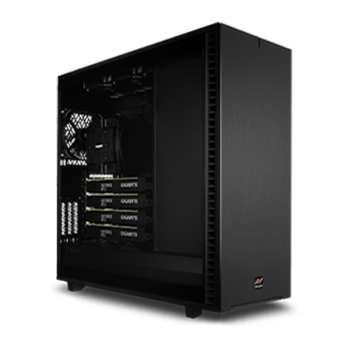 | The Right Graphics Card for a Workstation: NVIDIA GeForce or NVIDIA RTX PRO?
Both series are from NVIDIA, but they differ in their intended use. Our findings from our own benchmarks and tests: NVIDIA GeForce is more than sufficient for most workflows.
ISV Certification: When Only the Workstation Version Is an Option
SolidWorks, Inventor, CATIA, and similar software officially require ISV-certified drivers; this is largely standard in mechanical engineering, the automotive industry, and medical technology. RTX Professional cards undergo this certification and run on Studio drivers optimized for stability rather than frame rate, whereas GeForce cards do not. If your software officially runs only with certified drivers, this determines your GPU choice regardless of price. For GPU rendering, game development, and most other workflows, however, this certification is irrelevant; in those cases, raw performance per euro is what counts.
Graphics Memory for a Workstation as a Decision Criterion: From 16 GB to 96 GB
Once the driver issue is resolved, the second decision remains: how much graphics memory. The tiering of the current RTX PRO Blackwell generation is essentially based on graphics memory, as this determines how large assemblies, scenes, and models the card can process.
You can select all current NVIDIA RTX PRO models for your configuration in the Workstation Configurator. |
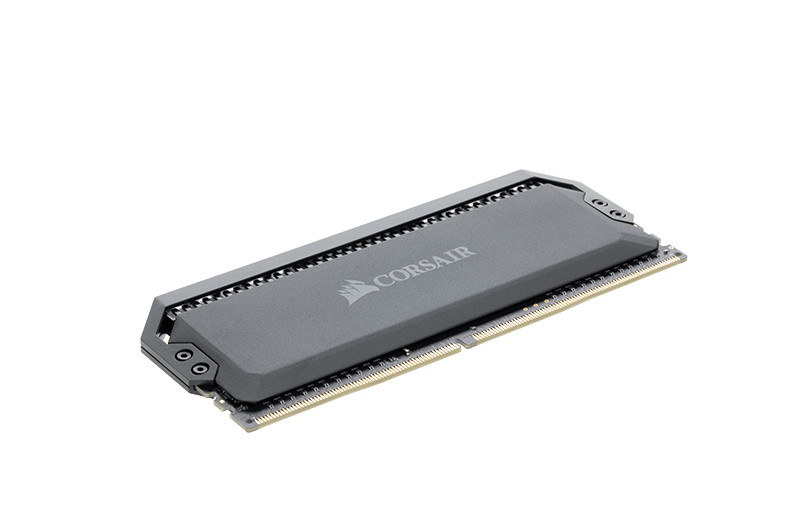 | Properly sizing RAM and storage for your workstation
The amount of RAM depends on the maximum amount of memory you’ll need for your largest project: 32 GB is the minimum for professional work, 64 GB is the standard for video and 3D, and 128 GB or more is required for simulation and compositing. For storage, we recommend a three-tier approach: a fast NVMe SSD for the system and applications, NVMe or RAID for active projects and media cache, plus capacity storage or a NAS for the archive. RAID is not a substitute for a backup; it merely bridges the gap in the event of a single disk failure. |
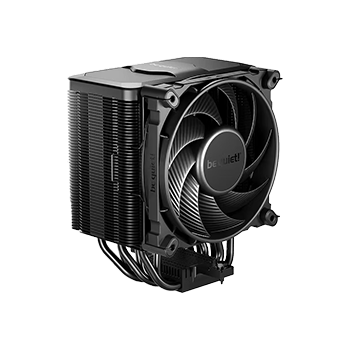 | Cooling for the workstation: quiet even under continuous load
A workstation running at full load generates significantly more heat than a standard office PC, especially when it has many cores or multiple graphics cards. Air cooling alone often reaches its limits here: either the system gets loud, or the processor throttles itself to maintain the temperature. Our water-cooled systems solve exactly that problem; they keep even processors with up to 96 cores consistently quiet and thermally stable—which is especially handy when the workstation is in the same room where you work. You can find suitable configurations in our Water-Cooled Workstations section. |
| ||||||||||||||||||||||||||||||||||||
The Right Graphics Card for a Workstation: NVIDIA GeForce or NVIDIA RTX PRO?
Both series are from NVIDIA, but they differ in their intended use. Our findings from our own benchmarks and tests: NVIDIA GeForce is more than sufficient for most workflows.
ISV Certification: When Only the Workstation Version Is an Option
SolidWorks, Inventor, CATIA, and similar software officially require ISV-certified drivers; this is largely standard in mechanical engineering, the automotive industry, and medical technology. RTX Professional cards undergo this certification and run on Studio drivers optimized for stability rather than frame rate, whereas GeForce cards do not. If your software officially runs only with certified drivers, this determines your GPU choice regardless of price. For GPU rendering, game development, and most other workflows, however, this certification is irrelevant; in those cases, raw performance per euro is what counts.
Graphics Memory for a Workstation as a Decision Criterion: From 16 GB to 96 GB
Once the driver issue is resolved, the second decision remains: how much graphics memory. The tiering of the current RTX PRO Blackwell generation is essentially based on graphics memory, as this determines how large assemblies, scenes, and models the card can process.
You can select all current NVIDIA RTX PRO models for your configuration in Workstation Configurator. |
|
Properly sizing RAM and storage for your workstation
The amount of RAM depends on the maximum amount of memory you’ll need for your largest project: 32 GB is the minimum for professional work, 64 GB is the standard for video and 3D, and 128 GB or more is recommended for simulation and compositing. For storage, we recommend a three-tier approach: a fast NVMe SSD for the system and applications, NVMe or RAID for active projects and media cache, plus capacity storage or a NAS for the archive. RAID is not a substitute for a backup; it merely bridges the gap in the event of a single disk failure. |
|
Cooling for the workstation: quiet even under continuous load
A workstation running at full load generates significantly more heat than a standard office PC, especially when it has many cores or multiple graphics cards. Air cooling alone often reaches its limits here: either the system gets loud, or the processor throttles itself to maintain the temperature. Our water-cooled systems solve exactly that problem; they keep even processors with up to 96 cores consistently quiet and thermally stable—which is especially handy when the workstation is in the same room where you work. You can find suitable configurations under Water-Cooled Workstations.
|
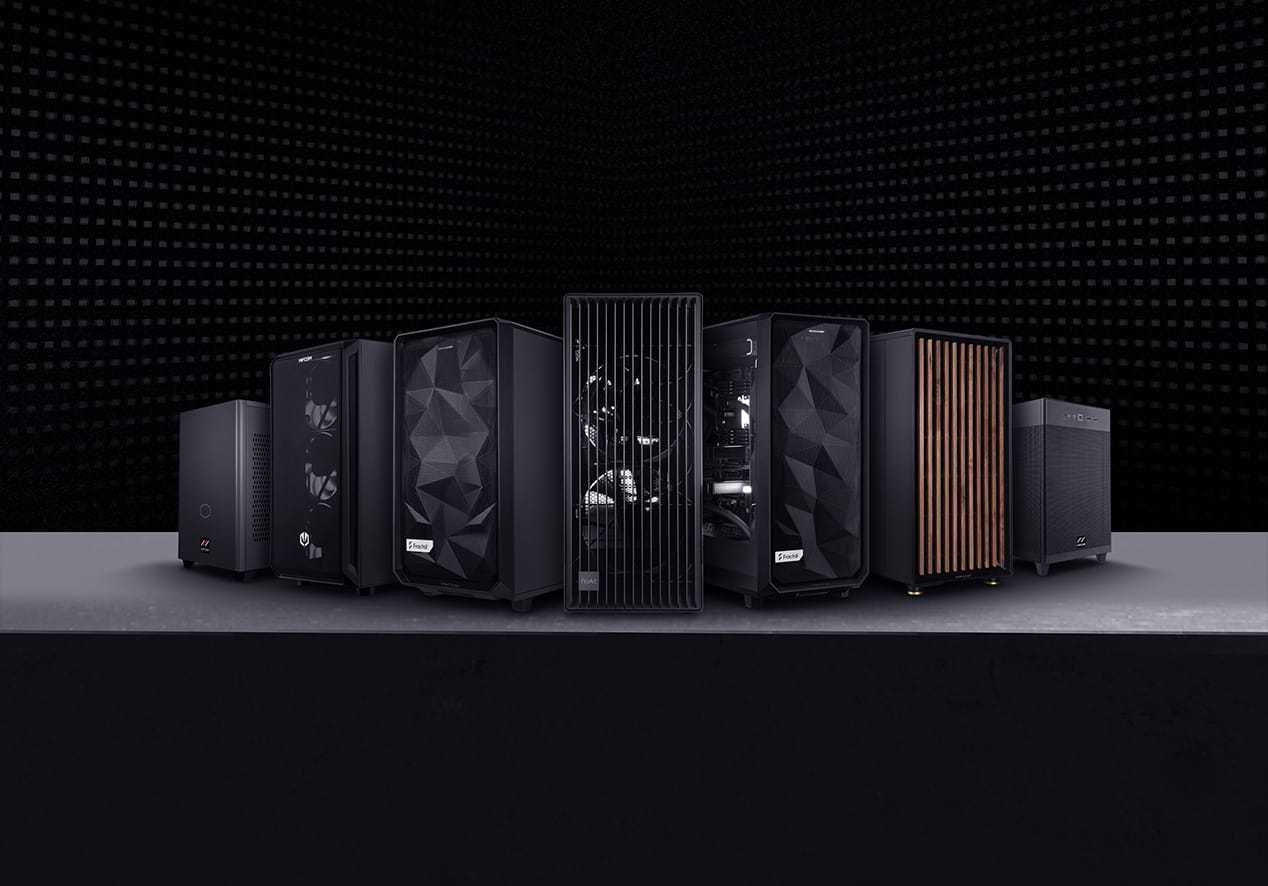
Which Workstation for Which Application?
 | Graphics Workstations for Photoshop, Illustrator, and InDesignFor Adobe Photoshop and InDesign, a fast single-core CPU is what matters most, since many filters and tools in these programs use only one or a few cores. A mid-range AMD Ryzen 9000 or Intel Core Ultra is more than sufficient for this. When it comes to the GPU, a mid-range GeForce RTX is usually sufficient; professional certification is generally not necessary here. 32 to 64 GB of RAM is standard; more is only worthwhile for very large, multi-layer files or when running multiple programs simultaneously. You can find details and suitable configurations under “Graphics Workstations.” |
 | Video Workstations for Editing and Post-ProductionAdobe Premiere Pro and DaVinci Resolve benefit from a powerful GPU for hardware encoding and effects, combined with plenty of fast NVMe storage to load projects quickly and serve as a media cache. For 4K projects, 64 GB of RAM and an upper-mid-range NVIDIA GeForce RTX are usually sufficient. As soon as 8K footage, multiple simultaneous streams, or complex Fusion workflows in Resolve are added, VRAM requirements (24 GB and more) and RAM requirements (128 GB) increase significantly.
You can find suitable systems in the Video Workstations section. |
 | CAD Workstations for Design and EngineeringAutoCAD, SolidWorks, Inventor, and CATIA are largely single-threaded: A high clock speed trumps the maximum number of cores here; an AMD Ryzen 9000 or Intel Core Ultra with 8 to 16 cores is usually the most cost-effective foundation. When it comes to the graphics card, ISV certification is key to ensuring that the hardware and software work together officially. For large assemblies, at least 32 GB of RAM is recommended; for additional FEM or CFD simulations, significantly more RAM plus ECC memory is needed to ensure long calculations run without failure. You can find detailed recommendations under CAD Workstations. |
 | 3D Workstations for Modeling and AnimationBlender, Maya, 3ds Max, and Cinema 4D have two distinct requirements: Single-core performance is key for modeling and viewport navigation, while for CPU rendering, the application scales with each additional core. If you regularly animate and render, a Threadripper with 24 to 64 cores is your best bet. 64 to 128 GB of RAM is the standard range for larger scenes and textures. You can find configurations and benchmarks under 3D Workstations. |
 | Rendering Workstations for Fast Image CalculationWhether CPU or GPU rendering is the right choice depends on the renderer you’re using: V-Ray CPU and Corona scale with the number of cores, while Redshift, OctaneRender, and V-Ray GPU scale with the number of graphics cards and their VRAM. For dedicated rendering farms, an AMD Threadripper PRO with many cores is often a good choice; for GPU-accelerated rendering, a multi-GPU configuration with several GeForce or RTX Professional cards is recommended. In both cases, it’s important to have sufficient RAM so that the scene doesn’t have to be swapped out during rendering. You can find details and configurations under Rendering Workstations. |
 | Workstations for Game Development in Unreal and UnityGame development presents several demands simultaneously: engine compilation benefits from as many cores as possible, the editor viewport requires real-time GPU performance, and light baking demands both at the same time. A proven setup is 16 to 32 cores—such as a Ryzen 9000 or an entry-level Threadripper—combined with a high-end GeForce RTX card. 64 to 128 GB of RAM ensures that the engine, IDE, version control, and browser all run smoothly at the same time, without you having to wait while switching between applications. You can find details and configurations under Game Development Workstations. |
 | VR Workstations for Virtual RealityVR development and VR visualization require consistently high—and, above all, consistently stable—frame rates, since both displays in the headset must be driven simultaneously and without stuttering; any drop in frame rate is immediately noticeable and unpleasant. Accordingly, you’ll need a high-end GeForce RTX or better, a fast CPU for physics and interaction calculations, and sufficient RAM. You can find details and configurations under VR Workstations. |
Which Workstation for Which Application?
|
Graphics Workstations for Photoshop, Illustrator, and InDesign
For Adobe Photoshop and InDesign, a fast single-core CPU is what matters most, since many filters and tools in these programs use only one or a few cores. A mid-range AMD Ryzen 9000 or Intel Core Ultra is more than sufficient for this. When it comes to the GPU, a mid-range GeForce RTX is usually sufficient; professional certification is generally not necessary here. 32 to 64 GB of RAM is the standard; more is only worthwhile for very large, multi-layer files or when running multiple programs simultaneously. You can find details and suitable configurations under “Graphics Workstations.” |
|
Video Workstations for Editing and Post-Production
Adobe Premiere Pro and DaVinci Resolve benefit from a powerful GPU for hardware encoding and effects, combined with plenty of fast NVMe storage to load projects quickly and serve as a media cache. For 4K projects, 64 GB of RAM and an upper-mid-range NVIDIA GeForce RTX are usually sufficient. As soon as 8K footage, multiple simultaneous streams, or complex Fusion workflows in Resolve are added, VRAM requirements (24 GB and more) and RAM requirements (128 GB) increase significantly. You can find suitable systems in the Video Workstations section. |
|
CAD Workstations for Design and EngineeringAutoCAD, SolidWorks, Inventor, and CATIA are largely single-threaded: A high clock speed trumps the maximum number of cores here; an AMD Ryzen 9000 or Intel Core Ultra with 8 to 16 cores is usually the most cost-effective foundation. When it comes to the graphics card, ISV certification is key to ensuring that the hardware and software work together officially. For large assemblies, at least 32 GB of RAM is recommended; for additional FEM or CFD simulations, significantly more RAM plus ECC memory is needed to ensure long calculations run without failure. You can find detailed recommendations under CAD Workstations. |
|
3D Workstations for Modeling and AnimationBlender, Maya, 3ds Max, and Cinema 4D have two distinct requirements: Single-core performance is key for modeling and viewport navigation, while for CPU rendering, the application scales with each additional core. If you regularly animate and render, a Threadripper with 24 to 64 cores is your best bet. 64 to 128 GB of RAM is the standard range for larger scenes and textures. You can find configurations and benchmarks under 3D Workstations. |
|
Rendering Workstations for Fast Image CalculationWhether CPU or GPU rendering is the right choice depends on the renderer you’re using: V-Ray CPU and Corona scale with the number of cores, while Redshift, OctaneRender, and V-Ray GPU scale with the number of graphics cards and their VRAM. For dedicated rendering farms, an AMD Threadripper PRO with many cores is often a good choice; for GPU-accelerated rendering, a multi-GPU configuration with several GeForce or RTX Professional cards is recommended. In both cases, it’s important to have sufficient RAM so that the scene doesn’t have to be swapped out during rendering. You can find details and configurations under Rendering Workstations. |
|
Workstations for Game Development in Unreal and UnityGame development presents several demands simultaneously: engine compilation benefits from as many cores as possible, the editor viewport requires real-time GPU performance, and light baking demands both at the same time. A proven setup is 16 to 32 cores—such as a Ryzen 9000 or an entry-level Threadripper—combined with a high-end GeForce RTX card. 64 to 128 GB of RAM ensures that the engine, IDE, version control, and browser all run smoothly at the same time, without you having to wait while switching between applications. You can find details and configurations under Game Development Workstations. |
|
VR Workstations for Virtual RealityVR development and VR visualization require consistently high—and, above all, consistently stable—frame rates, since both displays in the headset must be driven simultaneously and without stuttering; any drop in frame rate is immediately noticeable and unpleasant. Accordingly, you’ll need a high-end GeForce RTX or better, a fast CPU for physics and interaction calculations, and sufficient RAM. You can find details and configurations under VR Workstations. |

FAQ: | What’s the difference between a workstation and a gaming PC?Both use similar graphics cards in some cases, but their intended purposes are different: | |
What processor do I need for my workstation?The choice depends on your software’s requirements: | ||
What workstation do I need for CAD?For AutoCAD, SolidWorks, and similar programs, a high clock speed is more important than a large number of cores: an AMD Ryzen 9000 or Intel Core Ultra with 8 to 16 cores, plus an ISV-certified NVIDIA RTX Professional GPU and at least 32 GB of RAM. For simulations, ECC RAM may also be necessary. | ||
Do I need an NVIDIA RTX Professional for my workstation, or is NVIDIA GeForce sufficient?If your software requires ISV-certified drivers or if you need more than 32 GB of VRAM or ECC graphics memory, an NVIDIA RTX Professional graphics card is necessary. For GPU rendering, game development, and most other workflows, an NVIDIA GeForce RTX model delivers more performance per euro. | ||
How much graphics memory does a workstation need?The requirement depends on your application: | ||
How much RAM does a workstation need?The requirement depends on your application: | ||
How much storage does a workstation need?Every workstation should have a fast NVMe SSD for the operating system and active projects. Additional NVMe SSDs ensure fast access times to saved projects. For video editing and large 3D scenes, the SSD’s read speed directly determines how smoothly the timeline and viewport can be operated. | ||
What are the benefits of ECC RAM in a workstation?ECC automatically corrects memory bit errors during operation. This becomes relevant for calculations lasting hours or even days, where an incorrect result is more costly than the additional expense, for example, in simulations and rendering farms. | ||
Do I need an ISV-certified graphics card for my workstation?Only if your software requires it. CAD and simulation programs like SolidWorks or Ansys have been tested and approved for use with ISV-certified RTX Professional drivers, which ensures stability and support from the manufacturer. For creative software without ISV requirements, a standard GeForce RTX is sufficient. | ||
How loud is a workstation under full load?Even under full load, our workstations remain quiet. Brand-name coolers from Noctua, be quiet!, and Deepcool ensure adequate cooling. Customized fan profiles, which only ramp up when truly needed, keep noise levels within a tolerable range even during hours-long rendering or simulation sessions. | ||
Can I upgrade a workstation later?Yes. RAM, storage, and GPUs can be expanded in our systems; workstation platforms offer more slots and PCIe lanes for this purpose than consumer motherboards. However, the CPU platform itself should be suitable from the start, if you anticipate growth, it’s better to start with a higher-end model. | ||
How do I find the right workstation for my software?The best way to choose the right workstation is based on your application. Graphics, video, CAD, 3D, rendering, game development, and VR each place different demands on the processor, graphics card, and RAM. The workstations categorized by application provide an overview of all seven profiles. If you’re unsure which profile suits your software, our B2B team will help you directly in selecting the right configuration. |

Why Choose MIFCOM for Workstations
MIFCOM is an official NVIDIA Solution Provider in the NVIDIA Partner Network, with “Preferred” status in the areas of Compute and Visualization, as well as “Registered” status in the area of NVIDIA Enterprise Software. This partnership gives us direct access to the latest NVIDIA technologies, reference architectures, and technical support, all of which directly benefit your configuration. Every workstation is configured in Germany, tested under real-world conditions, and supported by dedicated personnel, from the initial consultation through to commissioning.
From the Workstation Buying Guide to Workstation Configuration
Now that you know what matters, you can configure your ideal workstation. Build your system using the Workstation Configurator, or start by
getting an overview of all categories in the workstations section. For bulk orders, special requirements, or RFPs,
our B2B team will speak with you directly.
FAQ: Frequently Asked Questions About Choosing a Workstation
What’s the difference between a workstation and a gaming PC?Both use similar graphics cards in some cases, but their intended purposes are different: |
What processor do I need for my workstation?The choice depends on your software’s requirements: |
What workstation do I need for CAD?For AutoCAD, SolidWorks, and similar programs, a high clock speed is more important than a large number of cores: an AMD Ryzen 9000 or Intel Core Ultra with 8 to 16 cores, plus an ISV-certified NVIDIA RTX Professional GPU and at least 32 GB of RAM. For simulations, ECC RAM may also be necessary. |
Do I need an NVIDIA RTX Professional for my workstation, or is NVIDIA GeForce sufficient?If your software requires ISV-certified drivers or you need more than 32 GB of VRAM or ECC graphics memory, an NVIDIA RTX Professional graphics card is necessary. For GPU rendering, game development, and most other workflows, an NVIDIA GeForce RTX model delivers more performance per euro. |
How much graphics memory does a workstation need?The requirement depends on your application: |
How much RAM does a workstation need?The requirement depends on your application: |
How much storage does a workstation need?Every workstation should have a fast NVMe SSD for the operating system and active projects. Additional NVMe SSDs ensure fast access times to saved projects. For video editing and large 3D scenes, the SSD’s read speed directly determines how smoothly the timeline and viewport can be operated. |
What are the benefits of ECC RAM in a workstation?ECC automatically corrects memory bit errors during operation. This becomes relevant for calculations lasting hours or even days, where an incorrect result is more costly than the additional expense, for example, in simulations and rendering farms. |
Do I need an ISV-certified graphics card for my workstation?Only if your software requires it. CAD and simulation programs like SolidWorks or Ansys have been tested and approved for use with ISV-certified RTX Professional drivers, which ensures stability and support from the manufacturer. For creative software without ISV requirements, a standard GeForce RTX is sufficient. |
How loud is a workstation under full load?Even under full load, our workstations remain quiet. Brand-name coolers from Noctua, be quiet!, and Deepcool ensure adequate cooling. Customized fan profiles, which only ramp up when truly needed, keep noise levels within a tolerable range even during hours of rendering or simulation. |
Can I upgrade a workstation later?Yes. RAM, storage, and GPUs can be expanded in our systems; workstation platforms offer more slots and PCIe lanes for this purpose than consumer motherboards. However, the CPU platform itself should be suitable from the start, if you anticipate future growth, it’s better to start with a higher-end model. |
How do I find the right workstation for my software?The best way to choose the right workstation is based on your application. Graphics, video, CAD, 3D, rendering, game development, and VR each place different demands on the processor, graphics card, and RAM. The workstations categorized by application provide an overview of all seven profiles. If you’re unsure which profile suits your software, our B2B team will help you directly in selecting the right configuration. |
Why Choose MIFCOM for Workstations
MIFCOM is an official NVIDIA Solution Provider in the NVIDIA Partner Network, with “Preferred” status in the areas of Compute and Visualization, as well as “Registered” status in the area of NVIDIA Enterprise Software. This partnership gives us direct access to the latest NVIDIA technologies, reference architectures, and technical support, all of which directly benefit your configuration. Every workstation is configured in Germany, tested under real-world conditions, and supported with personalized assistance, from the initial consultation through to commissioning.
From the Workstation Purchase Advisor to Workstation Configuration
Now that you know what matters, you can configure your ideal workstation. Build your system using the Workstation Configurator, or start by getting an overview of all categories in the workstations section. For bulk orders, special requirements, or RFPs, our B2B team will speak with you directly.
Our references







Our references