

3.389
29.649
Buy CAD Workstations – For AutoCAD, SolidWorks, and Inventor
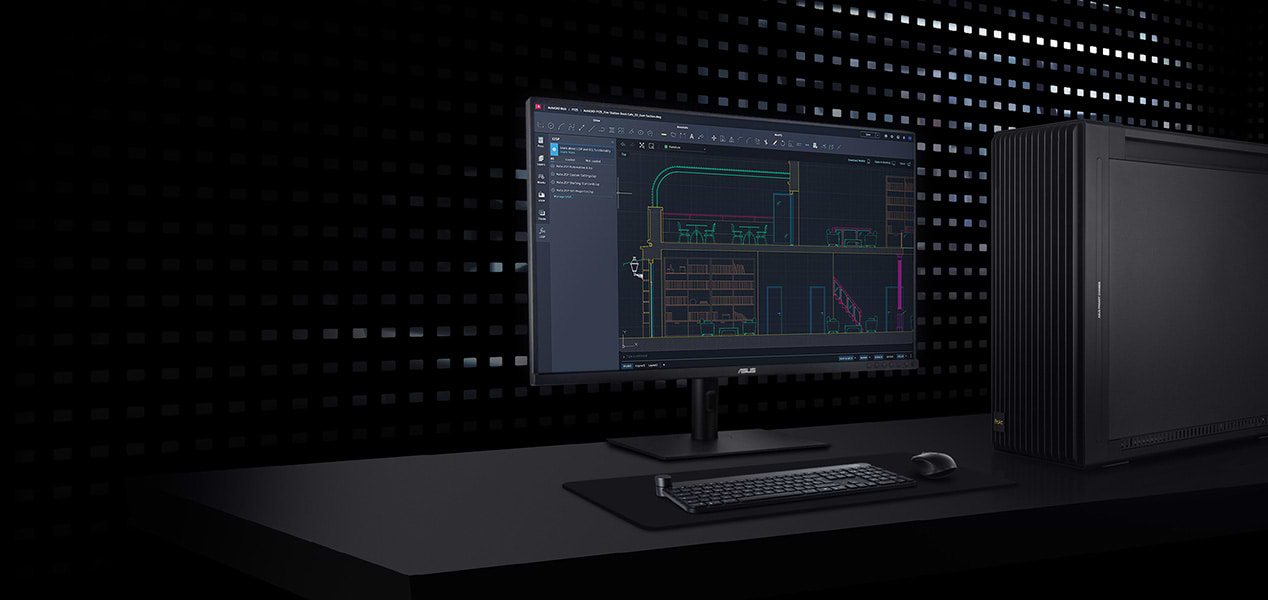
PRECISION
& EFFICIENCY
High-performance workstations for CAD – fast
and precise designs in architecture and engineering.
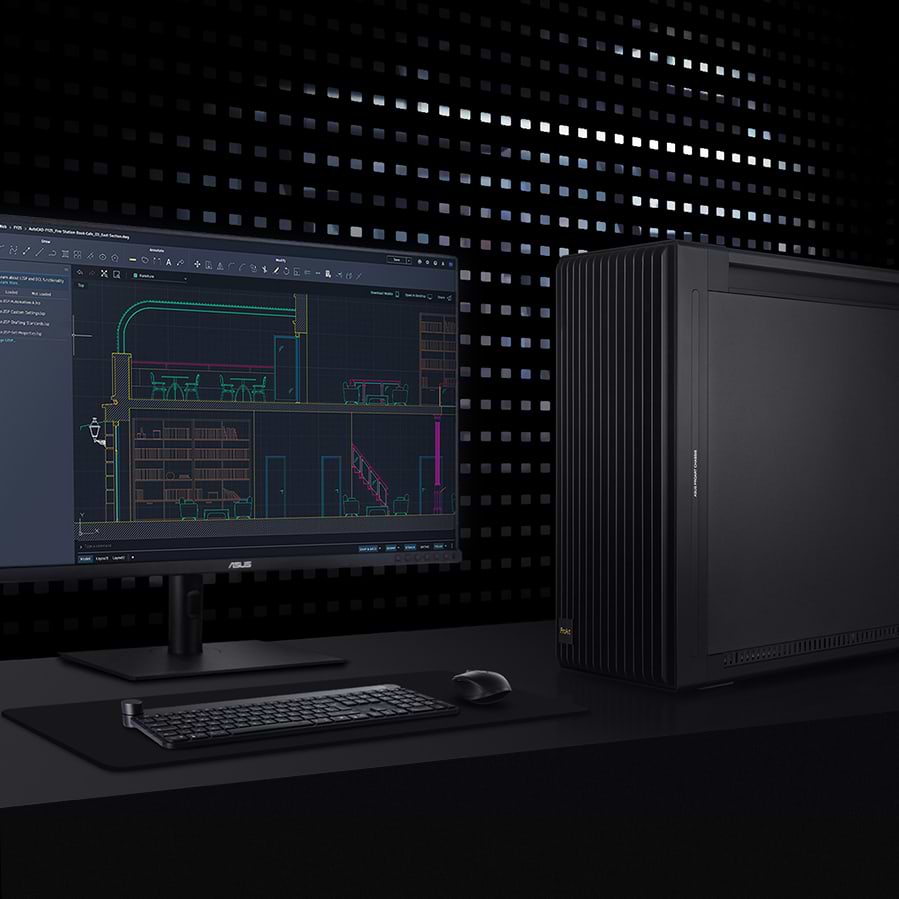
PRECISION
& EFFICIENCY
High-performance workstations for CAD – fast and precise designs in architecture and engineering.

Highest accuracy
Optimized for CAD applications
Fast workflows
Highest accuracy
Optimized for CAD applications
Fast workflows
CAD workstations
1 - 6 of 6 Products
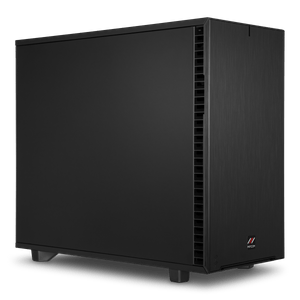
CAD Workstations: Certified Performance for Design and Planning
Are you looking for the perfect CAD workstation for programs like Autodesk AutoCAD, Autodesk Inventor, or SolidWorks? Our CAD workstations are tailored specifically to these applications, preconfigured, and customizable component by component—all manufactured and tested in Germany.
The Right Processor: High Clock Speed Over Multiple Cores
AutoCAD and Inventor benefit most from high clock speeds and barely scale with multiple cores. We therefore recommend processors such as the Intel Core Ultra 7 265K or the AMD Ryzen 9 9900X. Rendering processes within AutoCAD and SolidWorks are an exception: Intel Xeon W processors with high clock speeds and multiple cores, or the AMD Threadripper series, are well-suited for these tasks.
The Right Graphics Card: Selected Based on System Size
ISV-certified NVIDIA workstation graphics cards are particularly well-suited for CAD systems, as only these are officially supported by most CAD programs. For small assemblies, an NVIDIA RTX PRO 2000 is sufficient; for medium-sized assemblies, an RTX PRO 4000; and for large assemblies, an RTX PRO 6000 is recommended. AutoCAD itself is an exception: An RTX PRO 2000 is usually sufficient here, as the application requires little graphics memory.
| Assembly Size | 1080P | 4K |
| Small (<1 million parts) | NVIDIA RTX A1000 | NVIDIA RTX PRO 2000 |
| Medium (>1 million parts) | NVIDIA RTX PRO 2000 | NVIDIA RTX PRO 4000 |
| Large (>10 million parts) | NVIDIA RTX PRO 4000 | up to NVIDIA RTX PRO 6000 |
RAM and Storage
RAM requirements depend on the assembly size and the number of files open simultaneously: 16 GB is sufficient for most users; for large assemblies, we recommend 32 GB; and for very large SolidWorks assemblies, up to 64 GB. For storage, we recommend a fast NVMe SSD as the system and application drive, supplemented by a second SSD for project data.
Configured for Your Workflow
Each preconfiguration is a starting point that you can customize to match your assembly sizes and software. In the Workstation Configurator, you can configure your system according to your individual preferences. If you’re still deciding which platform best suits your workflow, our Workstation Buying Guide offers specific recommendations for each use case.
Is your application more focused on general-purpose 3D modeling without the need for ISV certification? Our 3D workstations are designed for that. You can find an overview of all profiles under Workstations by Application.
Our recommendations for SolidWorks, Inventor, Revit, and AutoCAD
SolidWorks / Autodesk Inventor / Revit / AutoCAD | |||
| Processor | Graphics Card | RAM | |
| Design and Modeling | AMD Ryzen 5 9600X Intel Core Ultra 5 245K | Starting with RTX A1000 | 16GB |
| Design and Modeling 4K | AMD Ryzen 7 9700X Intel Core Ultra 7 265K | NVIDIA RTX PRO 2000 | 32GB |
| Rendering Optimized 4K | Intel Xeon W7-2575X | up to NVIDIA RTX PRO 6000 | 128GB |
Custom-built, tested under full load for continuous operation
Every MIFCOM workstation is custom-built according to your configuration and undergoes a stress test under full load for several hours before shipment. We provide a 3-year warranty on all systems, including pick-up and return service, as well as lifetime support.
Engineering firms, businesses, and public institutions also benefit from dedicated account managers, quotes for bids, purchase on account, or leasing options. Contact our B2B team directly—by phone, email, or live chat—to learn more.